Combine Excel Sheets Into One Workbook

We've all been there: a parade of random Excel files scattered across your desktop, each holding one tiny piece of a big puzzle. You open one, then another, and suddenly your...
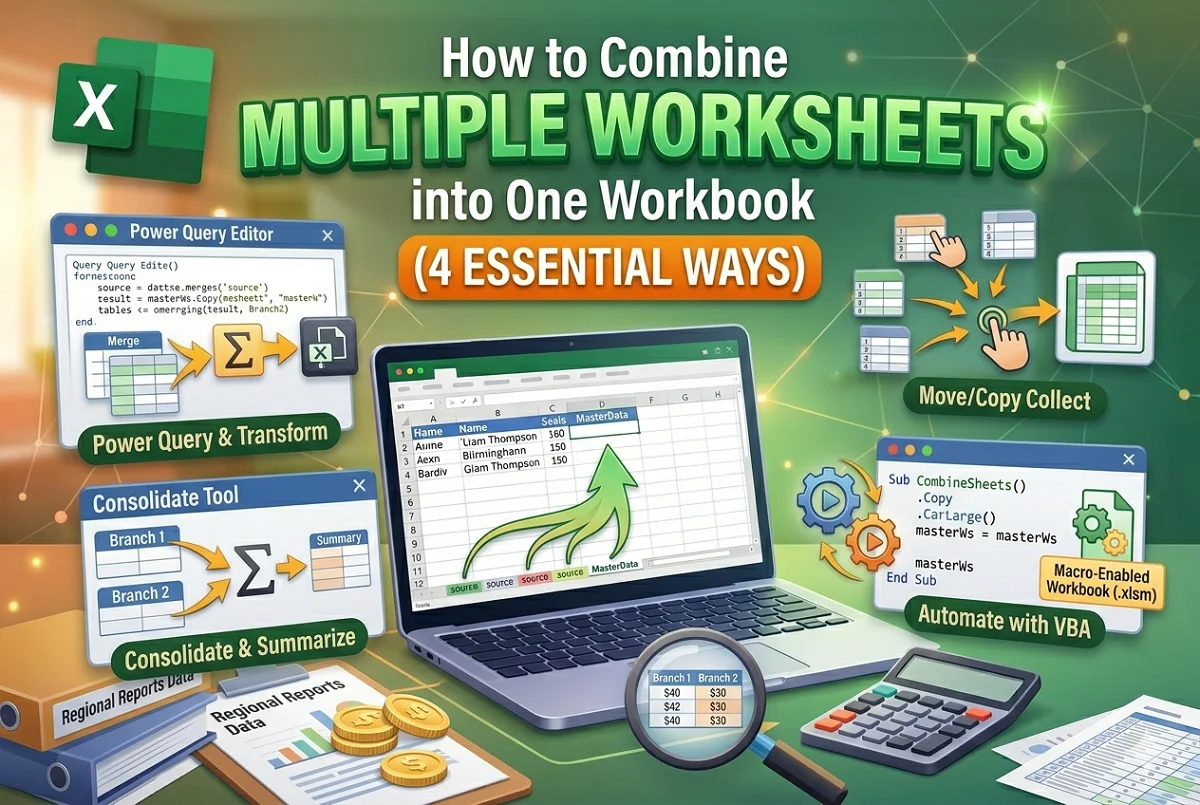
We've all been there: a parade of random Excel files scattered across your desktop, each holding one tiny piece of a big puzzle. You open one, then another, and suddenly your computer sounds like it's preparing for takeoff. It's time to bring all those lonely sheets together into one glorious workbook.
Why Bother Combining Sheets?
Imagine trying to finish a jigsaw puzzle while somebody keeps hiding half the pieces in another room. That's essentially what happens when your data lives across multiple files. Merging them into a single workbook makes everything easier to track, compare, and show off to that one coworker who never organizes anything.
Sorting Out Your Files First
Before you start clicking buttons, take a quick inventory of what you've got. Gather every Excel file that belongs together so you're not left guessing which version of "Budget_FINAL_v3_REAL" is the right one. A tidy desktop is a happy desktop — and honestly, a happy brain too.
Must Read
The Copy and Paste Approach (The Slow Dance)
One of the simplest methods involves opening both files and copying sheets from one to the other. Right-click on the sheet tab you want to move, choose Move or Copy, and select the destination workbook. Repeat this like you're collecting Pokemon cards — but electrical fun, less chaos.
Drag and Drop Like a Pro
With both workbooks open on screen, you can literally drag one sheet tab from one file into another. The cursor will usually show a little plus sign, letting you know a copy is being made rather than just a move. It's fast, it's visual, and it oddly satisfying — like sliding paper across a desk, but digital.
The Power Query Method (For the Adventurous)
If you've never explored Power Query, buckle up because it is a total game changer. Head to the Data tab, choose Get Data > From File, and start pulling sheets in programmatically. It sounds fancy, but it's surprisingly straightforward once you get the hang of it.
Making an Append
Power Query really shines when you want to stack rows from multiple sheets into a single table rather than just adding tabs. Click Append Queries and choose the sheets you want to combine — moving as one, like a well-trained dance crew. Once merged, load the result back into your workbook and watch the magic unfold.
Refreshing Is Your New Mantra
The beauty of Power Query is that it remembers how you combined everything. When source files update, you just hit Refresh and the workbook re-pulls the latest data automatically. It's like magic, except you're the wizard now — and the wand is a mouse click.
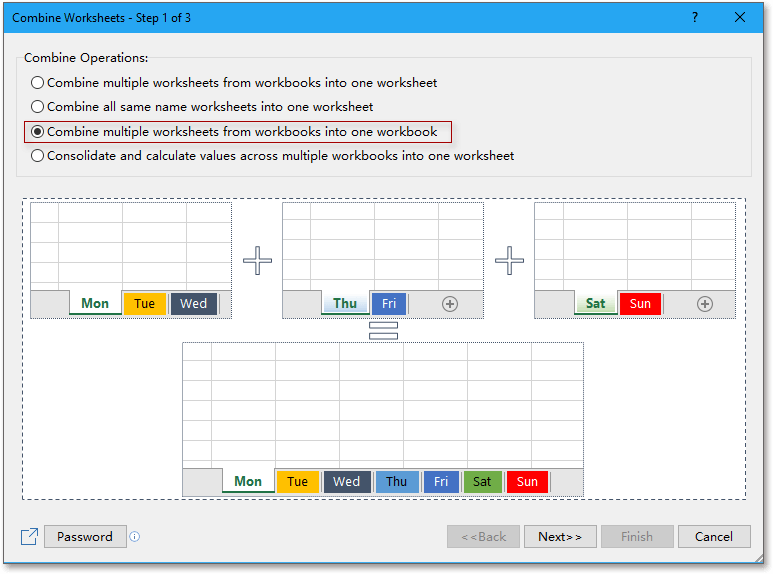 Quickly merge / combine worksheets or workbooks into one workbook in Excel
Using VBA Macros (For the Brave Souls)
For those who love poking around behind the curtain, a simple VBA macro can merge an entire folder of files in seconds. Open the VBA editor with Alt+F11, drop in a short loop-based script, and let it gobble up files like a spreadsheet-shredding machine. One pour of coffee later, your workbook is aligned.
Find the Right Script
You don't need to be a programmer — there are countless free macro snippets online that handle merging workbooks from a folder. Copy, paste, adjust a few paths, and run it. The first time it works, you will feel like you hacked into the matrix with a calculator.
Third-Party Tools That Save Time
If manual methods feel like a chore, consider add-ins or tools designed specifically for merging Excel files. Products like Kutools for Excel or online converters let you drop files in and get one clean workbook out. These tools can be lifesavers when you're dealing with dozens of files at once.
Pick What Fits Your Mood
Some days you feel manual, some days you feel automated — and both are perfectly fine. The goal is getting those sheets together without losing your afternoon — or your sanity. Experiment a little and discover the method that clicks with your workflow.
Safety Nets Before You Begin
Always, and I mean always, back up your original files before merging anything. A copied file is a safety net, and trusting the process without one is a recipe for a bad day. Think of it like wearing a seatbelt — rarely needed, until suddenly it matters.
 How to Combine Excel Workbooks Into One? - Worksheets Library
Check Your Bandwidth
Large workbooks can slow your computer to a crawl while merging. Keep tabs on file size and maybe close anything unnecessary before launching into heavy operations like Power Query or macro runs. Your laptop's fan will thank you with a gentle hum instead of a roar.
Conquering Color and Format Clashes
Merging sheets sometimes brings formatting surprises — mismatched fonts, rogue number formats, and stray conditional formatting rules. Take a few minutes after merging to normalize styles and make everything look consistent. Your future self (or your future boss) will absolutely appreciate the polish.
Name Those Tabs Clearly
Once all sheets live in one place, give them clear, intuitive names so nobody plays detective. Colour-code the tabs if that helps — little visual cues go a long way toward keeping things organised. A well-labelled workbook is like a well-arked kitchen: everything's findable.
A Few Quick Wins to Remember
To recap simply: sort your files first, pick a merge method that suits you, and always keep a backup handy. Whether you prefer drag-and-drop or Power Query magic, the result is the same — cleaner data and less frustration. You've got this harder than you think.
Now go fire up Excel, gather those stragglers, and assemble the workbook you always wanted. Every quota line you conquer, every file you merge, brings you one step closer to spreadsheet mastery. And honestly, your desktop has never looked better — so toast yourself, you good human! 🥂
