How To Stop Apps Running In Background Android

So picture this: you're chilling, minding your own business, and your phone suddenly feels like it's running a marathon. Sound familiar? Yeah, it's those sneaky background app...
:max_bytes(150000):strip_icc()/androidappforcestop-69242e4ed0a04cfea7293b95b27d36ce.jpg)
So picture this: you're chilling, minding your own business, and your phone suddenly feels like it's running a marathon. Sound familiar? Yeah, it's those sneaky background apps doing their thing, quietly draining your battery like little freeloaders at a buffet. But hey, don't worry — I've got your back. Let's figure out how to kick them out, shall we?
Why Do Background Apps Love to Hang Around?
Here's the thing. When you close an app, it's not really closed. Tricky, right? Android keeps many apps running in the background so they can refresh, update, and grab notifications while you're off doing something else.
Sure, that sounds helpful on paper. But when five or six apps are all quietly working behind the scenes? Your battery takes a nosedive, your RAM gets clogged up, and your phone starts acting like it's on life support. Nobody wants that drama.
Must Read
The Quick and Easy Way: Close Apps from Recent Apps
Let's start with the basics, because sometimes it's the simplest tricks that do the job. Just swipe up from the bottom (or tap the recent apps button, depending on your phone) and boom — there they all are, lined up like suspects in a police lineup.
Now, you can swipe each one away one by one. Or, if you're feeling lazy (no judgment here), look for that "Close all" button if your phone has one. Easy peasy, right?
But remember — this only handles apps you've manually opened. Some apps are stubborn; they'll quietly restart themselves later. So don't get too comfortable just yet.
Deny Background Activity: The Real Power Move
Alright, now we're getting to the good stuff. Head over to Settings → Apps → See all apps and pick the app that's been causing trouble. Every phone brands this a little differently, but you'll find somewhere around there.
Once you're in the app settings, look for something called "Background usage" or "Background activity." Tap it, then slide that little toggle off. Done. The app can still work when you open it, but it can't sneakily run behind your back anymore.
Do this for every battery-draining app, and watch your phone breathe a sigh of relief. It's like your phone just left a toxic relationship.
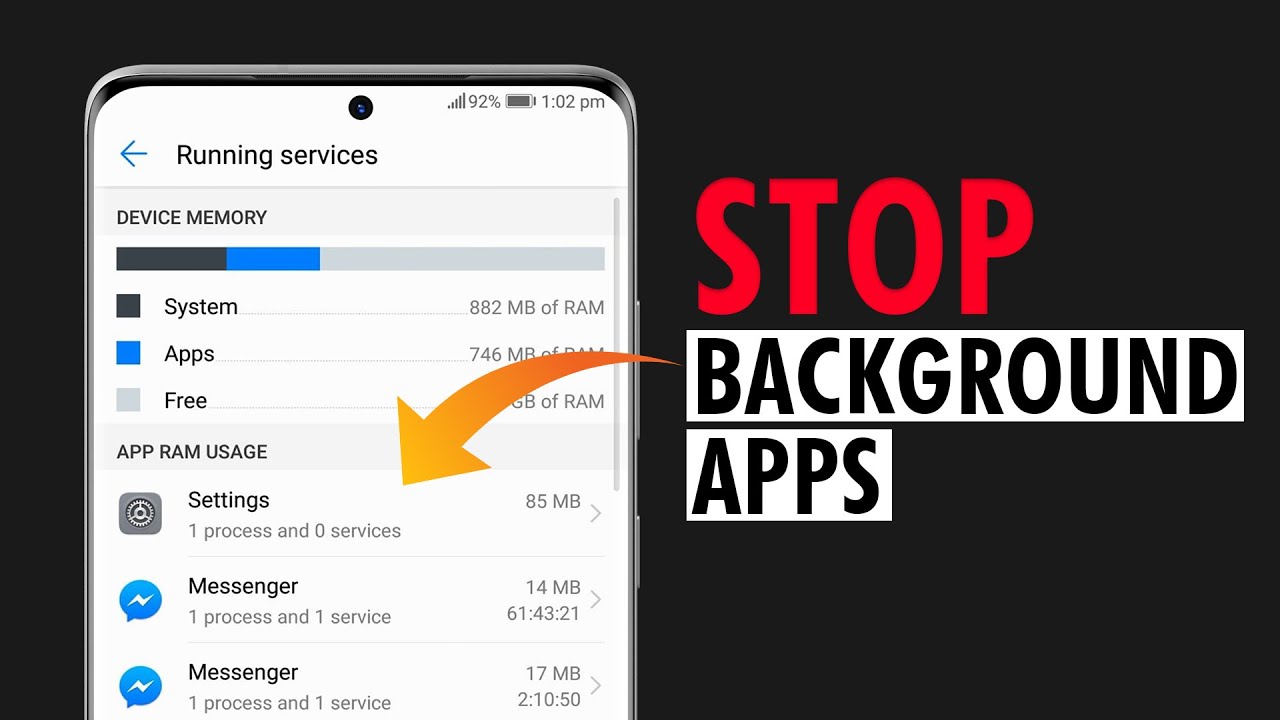 How To Stop Apps Running in the Background On Android | Turn off
Don't Forget the Battery Settings Shortcut
There's actually an even faster route to all this goodness. Go to Settings → Battery → Battery usage, and you'll see a list of apps ranked by how much juice they've been sipping. Sneaky little vampires.
Tap on the worst offenders and restrict their background activity right from there. One less trip through the settings maze — we love efficiency.
Force Stop: The Emergency Button
Now, if an app is being absolutely ridiculous and won't quit, you can hit it with a force stop. Go to that app's settings page and look for the "Force stop" button. Tap it, confirm, and the app is done for the moment.
Fair warning though — forced apps might behave a little oddly next time you open them. It's kind of like waking someone up by dumping water on their face. They're not going to be happy, but they'll get the picture.
Use Battery Optimization: Your Secret Weapon
Android has a built-in feature called battery optimization, and honestly? It's underrated. Go to Settings → Battery → Battery optimization and make sure you've set every app to "Optimize."
This tells Android to be extra vigilant about what runs when you're turning your back. It's like having a personal bouncer for your phone, keeping out the apps that shouldn't be there. Sign me up, right?
:max_bytes(150000):strip_icc()/001_stop-apps-from-running-in-the-background-on-android-4777510-10230e2474294af7ab6265f32759caf3.jpg) Stop Apps Running in Background on Android Easily
Stop Apps Running in Background on Android Easily
Try Unrestricting Only What You Need
Here's a pro-level tip: instead of optimizing everything, go through and selectively restrict only the apps you want running in the background. Maps? Yeah, keep that alive while you're driving.
That Instagram clone from 2019 you forgot about? Restrict. No hard feelings. This way you get the best of both worlds — essential apps work, while the freeloaders sit on the bench.
One More Thing: Consider a Third-Party App
If you're feeling extra ambitious and want a master control center
Just be careful not to restrict something critical like your messaging app. Unless you want to miss messages at 2 AM. Hey, maybe that's a feature for you.
Stopping background apps on Android doesn't have to be complicated. A few taps here, a toggle there, and your phone will feel brand new again. Battery life, smoother performance — the whole package.
So next time your phone starts dragging like it's wading through honey, you'll know exactly what to do. Set those freeloaders straight and take back control. Our phones deserve so much better.
Wrapping It All Up
:max_bytes(150000):strip_icc()/androidappforcestop-69242e4ed0a04cfea7293b95b27d36ce.jpg&description=How+To+Stop+Apps+Running+In+Background+Android)